
By David Gewirtz
Outlook is generally a quite capable program, but I've found there are features I just wish it would have. One of those features is something called "redirect".
Long ago, back before I used Outlook (and, as far as I can tell, long before Outlook existed), I used a mail client called Eudora. Eudora's still around, but because this is an Outlook magazine, we don't give Eudora all that much coverage any more, even though it's an excellent product. In any case, Eudora had a redirect feature -- and we used it constantly.
The idea was that if a message came in from, say, Jack at Microsoft to Denise's email box and it should really be answered by me, she'd be able to click the Redirect button, type in my email address, and then the message would go to my box.
That obviously doesn't seem much different from a forwarded message. What made Eudora's redirect special?
The answer is simple. When I would get that message (remember, it was sent to me from Denise, but it really originated from Jack at Microsoft), I could hit reply. Rather than my reply going back to Denise, my reply would go back to Jack, as if Jack had originally sent the message to me in the first place.
It was a very handy feature, especially since I'd sometimes get sales questions that needed to really be answered by our sales people, and they'd get editorial questions that really needed to be answered by me.
But then we moved to Outlook and the redirect feature was no longer available.
Redirect for Outlook
Recently, however, I became aware of an Outlook add-in that provides a redirection feature for Outlook. It's from MAPILab, is very easy to use and works quite well.
Installation is straightforward. As with all Outlook add-ins, you'll first need to quit Outlook. Then, you simply run the installer and Redirect for Outlook will be installed.
I really liked how MAPILab handled the first use of the add-in. Add-ins can often be confusing because they make changes to your Outlook user interface and it might not be clear where all the new features live. In the case of Redirect for Outlook, the first time you launch Outlook after installing Redirect for Outlook, you'll see a number of screens like that shown in Figure A.
FIGURE A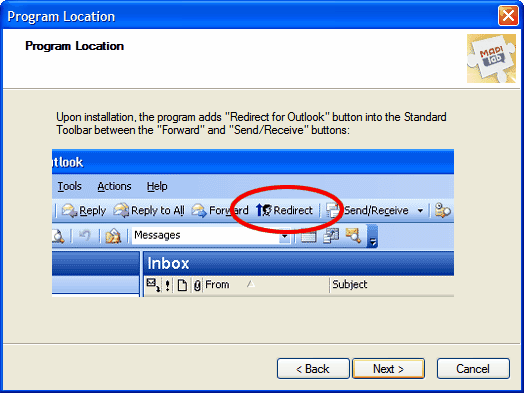
The program is helpful and tells you where the new features can be found. (click for larger image)
There are a number of screens in this introductory tutorial and they help to give a very good idea of how the Outlook user interface has changed to include the new features. Kudos to MAPILab for doing this!
The strange case of RFOHeader.txt
Back when we used Eudora, we'd just hit the Redirect button and the person getting the redirect was able to reply. There were no special custom features needed by the recipient.


