By Bill Mann
If you're like me, you spend much of your day in Outlook. Wouldn't it be nice to spend less time there, and more time doing other stuff, maybe even spending some time away from the computer? Well, I can't guarantee you a specific result (despite the title of this article), but if you take advantage of the five techniques I describe here, you will save significant time in Outlook every day.
The five techniques that will save you time working with Outlook and maybe get you back a little more of your real life are:
- Ignore it
- Use keyboard shortcuts
- Automate your filing
- Keep your junk mail filter current
- Take advantage of the "secret" pane
Ignore it
This is the number one technique for saving time when working with Outlook. Just ignore it. More specifically, ignore the endless flood of email that comes pouring into your Inbox every day. Every time that alert pops up to tell you a new message (or two, or six) has arrived, it causes you to shift focus from whatever you are doing. It can take a surprising amount of time to get back on track.
In a recent study, a group of Microsoft employees working on serious tasks like writing code reportedly took an average of 15 minutes to get fully back on task after replying to email. That's a serious chunk of time wasted getting back into what you were doing before you read that stupid email chain letter from your friend. How many times a day do you get interrupted by incoming messages?
You can easily get a handle on this problem by telling Outlook not to check for new mail so often. Right now, I have Outlook set to do an automatic send and receive every two hours, instead of the default, which is every 5 minutes.
To make the change, click Tools, then Options. In the Options dialog box, click the Mail Setup tab, then the Send/Receive button to open the Send/Receive Groups dialog box, shown in Figure A.
FIGURE A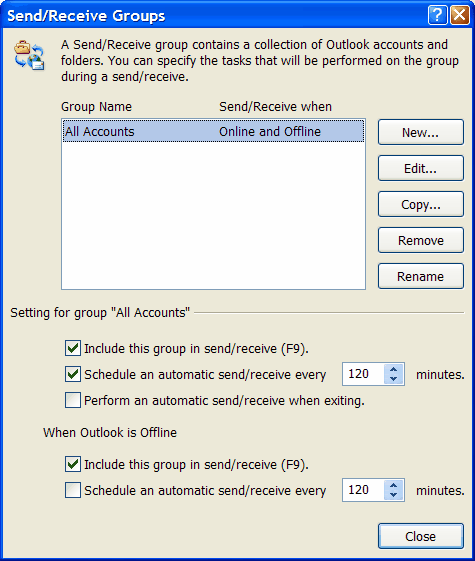
Adjust how frequently Outlook sends and receives mail to reduce interruptions and gain time. (click for larger image)
You'll probably see a single group. Select it if isn't already, then look at the settings in the bottom part of the dialog box. Adjust the automatic send/receive schedule options to the longest time you dare. Click Close, then OK to get back. Incoming messages will interrupt you far less frequently, and you should get far more done.
Tip: Don't forget that you can use the F9 keyboard shortcut to manually check for mail at any time.