
By David Gewirtz
Outlook is a complex beast and when something fails, it's often difficult to figure out what's going wrong. In this article, we'll take a look at a weird problem one of our readers experienced and how, when all else fails, you might want to turn to Outlook's profile to fix the problem.
Reader Ian Steptoe wrote in about a particularly weird problem he was having:
I have a problem with Outlook which is really annoying me and no one has been able to give me a fix.
I have set up Outlook to access my Gmail account via POP. After first setting up the account details, I can access the account to download and send emails with no problem. However, whenever I close Outlook, something happens to the settings because the next time I open Outlook the settings have changed.
Specifically in the email account POP settings screen, the incoming mail server (POP3) changes from pop.gmail.com to localhost and the logon Information Username has appended to it /pop.gmail.com. These changes stop Outlook accessing the account and I have to reset them to their original setting every time I open Outlook.
Something is making theses changes but I can't find out what it is and the gmail team have been unable to help, saying it is a problem with Outlook.
I sure hope that you can offer some advice.
Well, I certainly can't guarantee that the profile technique we'll discuss today will help, but, heck, anything's worth a try. Before I go on, let's get the usual warning out of the way: anything you do may screw you up further. Backup your system first.
Understanding profiles
An Outlook profile contains specific information about your email account. If you have a bunch of email accounts, you'd have one profile for each. Since the profile is a container holding data, it's always possible that data got corrupted in one way or another.
In Ian's case, my bet is that he's got a corrupted profile. The easiest thing to do, then, would be to create a new profile.
Profiles aren't controlled from within Outlook. Instead, they're set and changed from within the Mail control panel. To get to this, Click Start, move your mouse to Settings, and then click Control Panel.
The Control Panel window will open. Double-click the Mail control panel icon and then click the Show Profiles button. You'll see a window like that shown in Figure A.
FIGURE A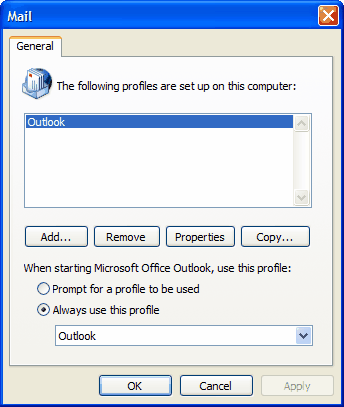
This is your profiles window. (click for larger image)
The window is desceptively straightforward. Before you delete your old profile, I recommend creating a new one by clicking the Add button and then following the wizard. At this stage, I'd recommend selecting the "Prompt for a profile to be used" button, so when you launch Outlook, you can choose between profiles and see which works.
Once you get a working profile, just remove the profile that doesn't work.
Good luck!


